Wi-Fi and networking
Placement, dead zones, and when to run a cable.

Smart Home & Tech covers the network and the devices that depend on it: router placement, dead zones, guest Wi-Fi, thermostats, docks, and the small desk where the work actually happens. The point is to buy the second piece of gear only after the first one is in the right place. Guides compare specification ideas such as wired backhaul versus an extender. They are not brand rankings and they are not the result of a secret lab test. When a topic touches safety, such as a thermostat on an unknown system, the page tells you to stop. Home office pages link back to lighting and desk layout under Home & Garden, because a monitor arm does not fix a dark room. Use the Wi-Fi planner and the compatibility checklist as question generators, then confirm the model number on the manufacturer page.
These labels group the guides in this section. They are not separate pages.
Placement, dead zones, and when to run a cable.
Compatibility checks before you add another hub or device.
Router basics, guest Wi-Fi, cameras, and speakers.
Monitors, docks, UPS sizing, and call lag.
Place the router on an open shelf as central as the modem cable allows, not in a cabinet or on the floor.
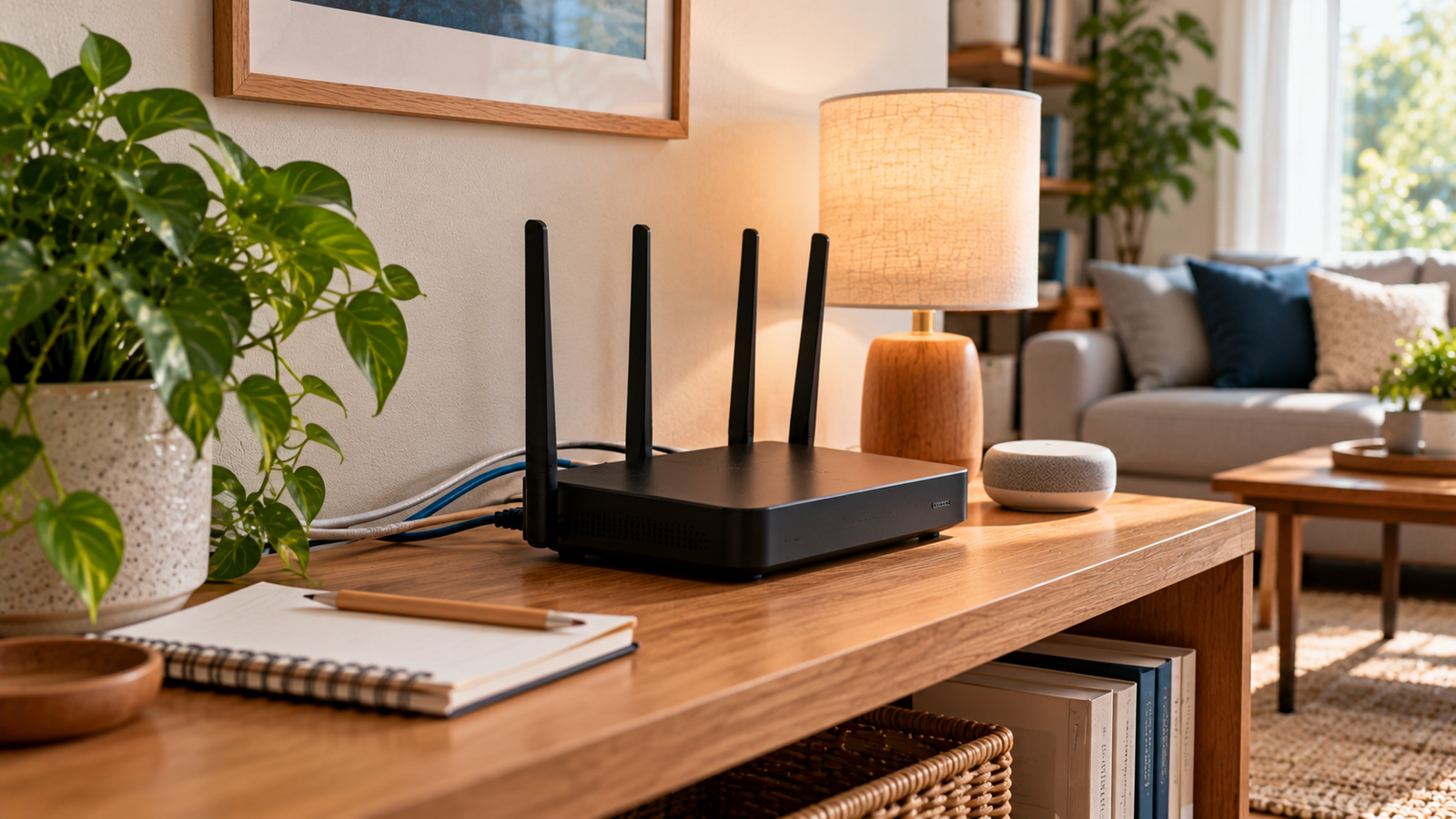
Map where Wi-Fi fails, move the router once, and add an extender or mesh only after a walk test.
Plan rooms, Wi-Fi, one control method, and account security before buying the first smart-home device.
Smart Home & Tech
Use a separate guest SSID with WPA2 or WPA3, a unique password and isolation checks supported by your router.
Smart Home & Tech
Free space if Windows asks, run the troubleshooter once, and rename SoftwareDistribution only after its services are stopped. Leave security on.
Smart Home & Tech
See whether a WebP fails as a file, in one viewer, or only on the page. Re-export from the master once if nothing can decode it.
Smart Home & Tech
Fix the spelling first. If only this PC says the name is missing, flush the local cache once. Do not switch DNS to get around a school or work filter.
Smart Home & Tech
A refused connection means a host was reached. Check a phone before you change DNS. Do not open ports, and do not turn the firewall off.
Smart Home & Tech
See whether one site resets or every site fails. Test a phone on mobile data before any network command. Leave antivirus on, and do not run a Winsock reset.
Smart Home & Tech
See whether the home page loads. A single slow report is a note to the site, not a PC rebuild.
Smart Home & Tech
Follow the maintenance note or Retry-After. Do not change DNS, and do not refresh in a loop.
Smart Home & Tech
Check the monitor input and Win+P before you touch a driver. Use Safe Mode’s on-screen number, and do not open the case.
Smart Home & Tech
Restart Windows Search, rebuild the index, and add the folder you actually use. SearchHost is a process, not a service to create.
Smart Home & Tech
Select the output device you mean to hear, then test one local file. Start Windows Audio if it is stopped. Do not install a driver updater.
Smart Home & Tech
Confirm the PC has a Bluetooth radio, remove the old pairing, and install the maker’s driver. Do not guess a BIOS key or install an updater.
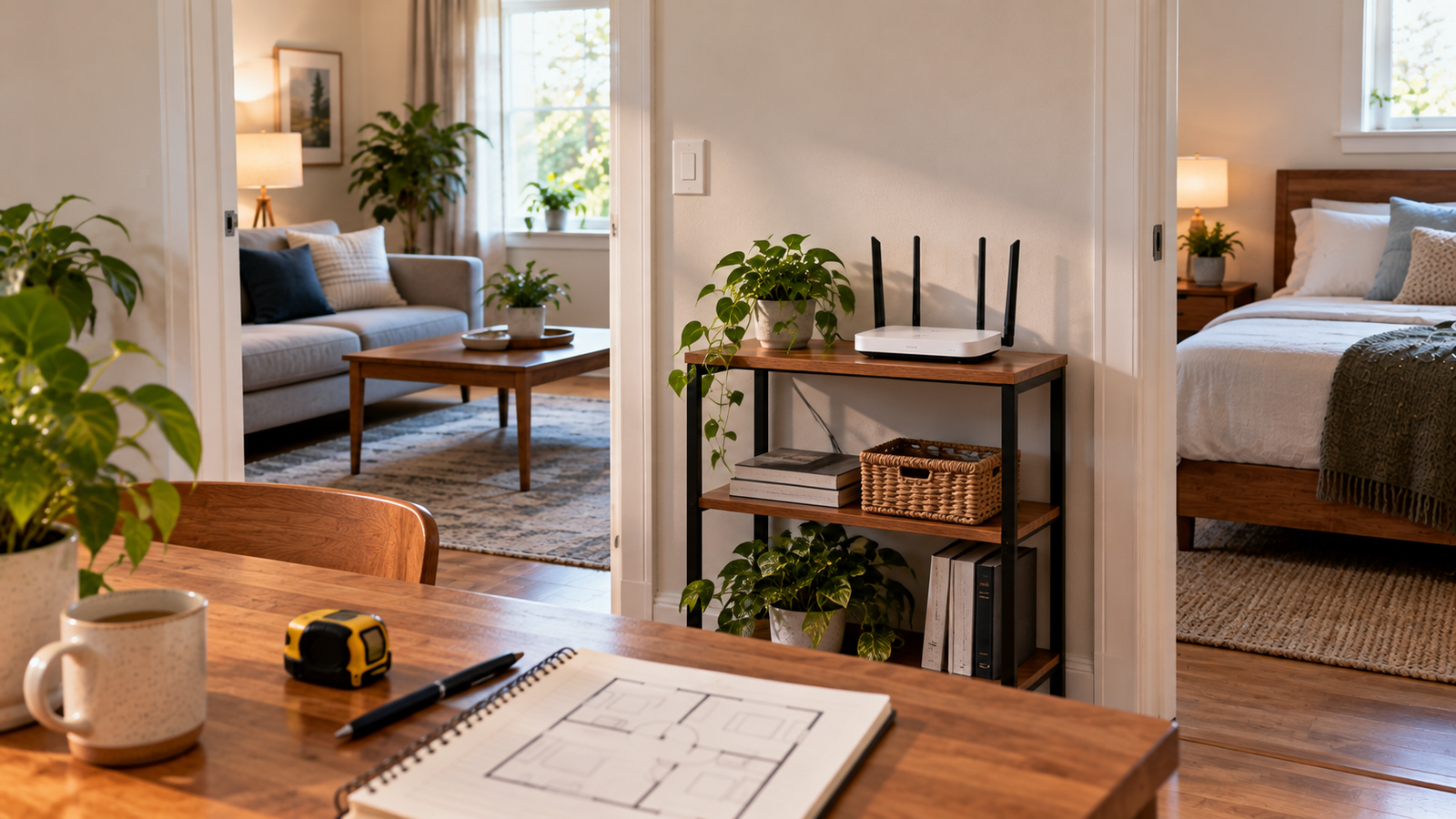
Estimate how many ceiling access points to price for a home.
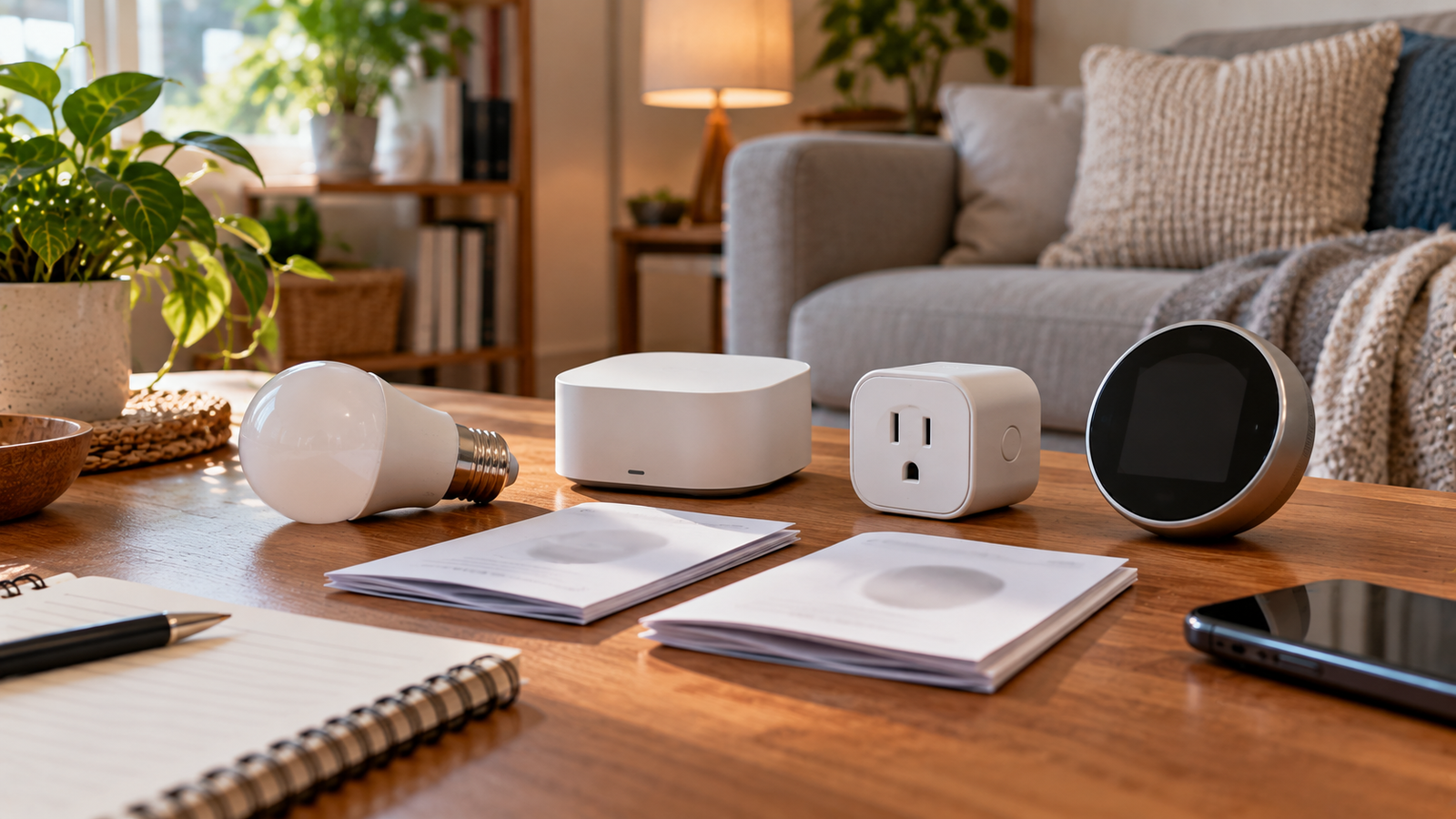
Build the questions to ask a spec sheet before you buy a device.

Reduce a JPEG file size in your browser with a quality slider. Nothing is uploaded.

Convert a PNG to WebP locally in your browser when the browser supports encoding.

Convert a WebP image to JPEG in your browser, with a background color for transparency.

Resize JPG, PNG, or WebP images locally with optional aspect-ratio lock.
Read basic image details (MIME, size, dimensions) locally in your browser.
Showing 1–20 of 212 guides · 20 per page · Open in Guides list
Page 1 of 11